---
title: Connecting systemHUB to ChatGPT (AI Gateway / MCP)
description: Learn how to connect your systemHUB account to Chat GPT using the AI Gateway, so you can query your systems, policies, and training content directly from your AI assistant. The same steps apply to other AI tools like ChatGPT, and you can use this inside Claude on the web, desktop, or the Claude Code terminal.
---
[Skip to content](https://kb.systemology.com/help-center/connecting-systemhub-to-chatgpt-ai-gateway-/-mcp-0#main-content)
English
Show submenu for translations
![1000X162.png\]](https://kb.systemology.com/hs-fs/hubfs/1000X162.png?width=250&height=43&name=1000X162.png)
Open main navigation
Close main navigation
- English
Show submenu for translations
- [www.systemHUB.com](https://www.systemhub.com/)
[www.systemHUB.com](https://www.systemhub.com/)
How can we help?
- There are no suggestions because the search field is empty.
1. [Help Center](https://kb.systemology.com/help-center?hsLang=en)
2. [Integrations & API](https://kb.systemology.com/help-center/integrations-api?hsLang=en)
# Connecting systemHUB to ChatGPT (AI Gateway / MCP)
## Learn how to connect your systemHUB account to ChatGPT using the AI Gateway, so you can query your systems, policies, and training content directly from your AI assistant.
### **🤖 Connecting Via ChatGPT**
### **🔑 Before You Begin**
- You need AI Gateway access. If you don't see Settings → AI Gateway, email support@systemology.com and we'll switch it on for your role (admin seats have it by default).
- Have your systemHUB login handy, you will approve the connection at the end.
- Treat the token you generate like a password. Do not share it.
- Use Claude? [Click here](https://kb.systemology.com/help-center/connecting-systemhub-to-claude-ai-gateway-/-mcp?hsLang=en) for Claude connection instructions.
---
### **🧭 Step 1 — Get your connection details from systemHUB**
1. Log in to systemHUB.
2. Go to **Settings** -\> **AI Gateway**.
3. Copy the **Connector URL** exactly as shown (a wrong character here is the #1 cause of failures).
4. Note your **OAuth Client ID** and your **company alias**, both are your account subdomain (the part before .systemhub.com). Example: if you log in at acme.systemhub.com, your alias is **acme**.
5. Click **Generate** to create a token and copy the long token string. ⚠️ If you already have one, only click Update if you need to. It revokes your old token and disconnects any AI you connected with it, including Claude.
---
### **🔌 Step 2 — Add the connector in ChatGPT**
1. Turn on **Developer Mode**, then create the app. Where you do that depends on your ChatGPT plan:
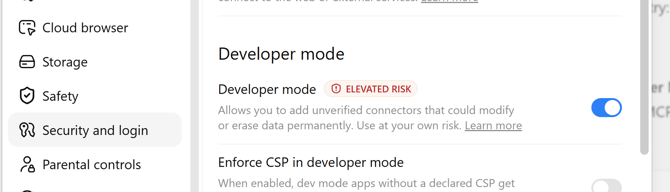
1. **Plus / Pro:** Settings → Apps → Advanced Settings → turn on Developer Mode → Create
2. **Business:** you must be a workspace admin. Workspace Settings → Apps → Create
3. **Enterprise / EDU:** you must be a workspace admin. Settings → Apps → Advanced Settings → Create
2. A new window pops up where you enter in your systemHUB details from Step 1.
1. Name it **systemHUB**.
2. Paste the **Connector URL** from Step 1 (double-check it is exact).
3. Under Authentication, click OAuth and the window will expand with more fields to complete
4. Paste your **OAuth Client ID** in the **OAuth Client ID** field
5. Paste the **token** you generated into the **OAuth Client Secret** field
6. Tick "I understand and want to continue"
3. Click **Create**.
---
### **✅ Step 3 — Connect and approve**
1. A new window will now appear for you to **sign into systemHUB**
2. When prompted, enter your **company alias**, this is the same as your OAuth ID and your subdomain, all lowercase with no spaces (e.g. **acme**, not "Acme" or "My Company"), then click **Continue**
3. Log in with your systemHUB credentials and click **Approve Connection**
4. ChatGPT should now redirect back and shows the systemHUB app as **Connected**
---
### **🧪 Step 4 — Test the connection**
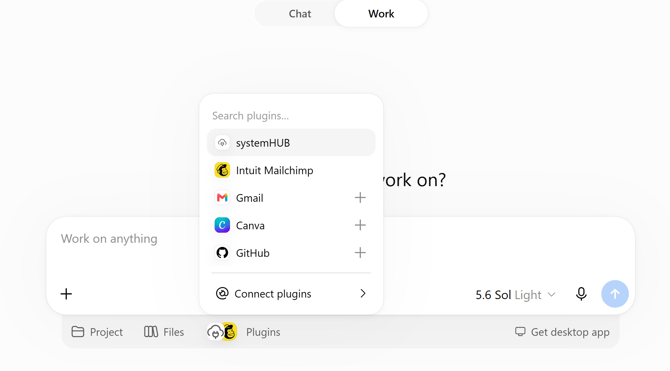
1. Start a new **WORK** chat and select **systemHUB** from the plugins list underneath the chat box:
2. Then ask: **"Can you check the folder tree and tell me what main root-level folders I have in my systemHUB account?"**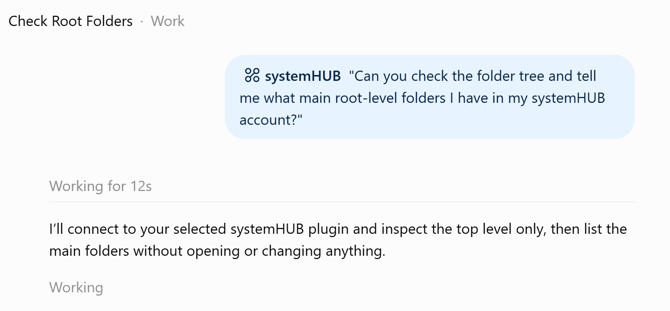
3. ChatGPT will load the tool and return your folders, which confirms it is working!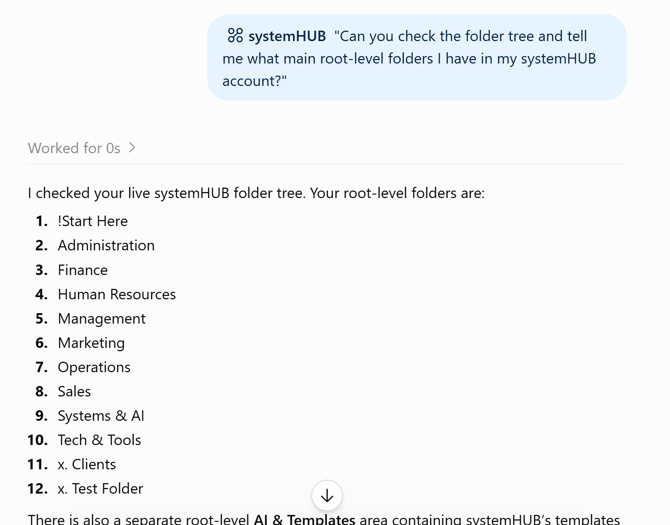
---
### **🛠️ Troubleshooting**
- **"Invalid or expired client ID"**
- This is almost always the company alias or the token.
- Check the alias is your exact subdomain, lowercase, no spaces (acme, not "Acme" or your company name).
- Your token may have expired or been regenerated, so go back to **Settings** -\> **AI Gateway**, generate a fresh token, and update it in the connector.
- Confirm the **Connector URL** was pasted exactly.
- **No "AI Gateway" option under Settings**
- Your role doesn't have AI access switched on yet. Only systemHUB support can enable it for Editor, Contributor and Reader roles, so email support@systemology.com and tell us which roles. Once it's on, each person's AI gets exactly their own seat's permissions: a Reader's AI can read but can't change anything.
- **"No active agent token found" when approving**
- You haven't generated your own token yet. Each person needs their own. Generate one in Settings → AI Gateway, then approve again.
- **ChatGPT says Connected but no tools show up**
- The approve step wasn't finished. Reconnect, sign in to systemHUB and click Approve Connection.
- **Connector adds but will not connect**
- Remove it and re-add with a freshly generated token.
---
### **🎉 You're All Set!**
ChatGPT can now read your systemHUB content. Try asking it to summarise a system, find a policy, or list what is in a folder.
- [Getting Started](https://kb.systemology.com/help-center/getting-started?hsLang=en)
- [Profile & Settings](https://kb.systemology.com/help-center/profile-settings?hsLang=en#main-content)
- [Profile Setup & Onboarding](https://kb.systemology.com/help-center/profile-settings?hsLang=en#profile-setup-onboarding)
- [Account Security & Access](https://kb.systemology.com/help-center/profile-settings?hsLang=en#account-security-access)
- [Notifications & Preferences](https://kb.systemology.com/help-center/profile-settings?hsLang=en#notifications-preferences)
- [Admin & Billing](https://kb.systemology.com/help-center/admin-billing?hsLang=en#main-content)
- [Team & User Management](https://kb.systemology.com/help-center/admin-billing?hsLang=en#team-user-management)
- [Subdomain & Organization Settings](https://kb.systemology.com/help-center/admin-billing?hsLang=en#subdomain-organization-settings)
- [Billing & Subscriptions](https://kb.systemology.com/help-center/admin-billing?hsLang=en#billing-subscriptions)
- [Permissions & Roles](https://kb.systemology.com/help-center/permissions-roles?hsLang=en)
- [Building Content](https://kb.systemology.com/help-center/building-content?hsLang=en)
- [Working With Content](https://kb.systemology.com/help-center/working-with-content?hsLang=en#main-content)
- [Tagging & Organization](https://kb.systemology.com/help-center/working-with-content?hsLang=en#tagging-organization)
- [Content & Collaboration Tools](https://kb.systemology.com/help-center/working-with-content?hsLang=en#content-collaboration-tools)
- [Limits & Specifications](https://kb.systemology.com/help-center/working-with-content?hsLang=en#limits-specifications)
- [Training](https://kb.systemology.com/help-center/training?hsLang=en)
- [Reports & Compliance](https://kb.systemology.com/help-center/reports-compliance?hsLang=en)
- [Integrations & API](https://kb.systemology.com/help-center/integrations-api?hsLang=en)
- [Troubleshooting](https://kb.systemology.com/help-center/troubleshooting?hsLang=en#main-content)
- [Technical Requirements & Compatibility](https://kb.systemology.com/help-center/troubleshooting?hsLang=en#technical-requirements-compatibility)
- [Cache, Performance & Errors](https://kb.systemology.com/help-center/troubleshooting?hsLang=en#cache-performance-errors)
- [Status, Requests & Affiliate Program](https://kb.systemology.com/help-center/status-requests-affiliate-program?hsLang=en#main-content)
- [Affiliate Program](https://kb.systemology.com/help-center/status-requests-affiliate-program?hsLang=en#affiliate-program)
- [Legal & Security](https://kb.systemology.com/help-center/legal-security?hsLang=en#main-content)
- [Policies & Terms](https://kb.systemology.com/help-center/legal-security?hsLang=en#policies-terms)
[](https://www.SYSTEMology.com/)
Copyright © 2026, SYSTEMology / systemHUB