---
title: Sharing systems publicly via generated link
description: Need to share a system with someone who isn't on your account — a contractor, a client, an auditor? Generate a public link.
---
[Skip to content](https://kb.systemology.com/help-center/sharing-systems-publicly-via-generated-link#main-content)
English
Show submenu for translations
![1000X162.png\]](https://kb.systemology.com/hs-fs/hubfs/1000X162.png?width=250&height=43&name=1000X162.png)
Open main navigation
Close main navigation
- English
Show submenu for translations
- [www.systemHUB.com](https://www.systemhub.com/)
[www.systemHUB.com](https://www.systemhub.com/)
How can we help?
- There are no suggestions because the search field is empty.
1. [Help Center](https://kb.systemology.com/help-center?hsLang=en)
2. [Working With Content](https://kb.systemology.com/help-center/working-with-content?hsLang=en)
# Sharing systems publicly via generated link
## Learn how to use systemHUB's built-in share function to securely send read-only documents to external users, revoke access instantly, and easily transfer systems between different systemHUB accounts.
---
### **🚀 How to Generate a Share Link**
Every system, policy, and training document in systemHUB features a built-in sharing function. This generates a public URL you can send to anyone—even if they do not have a systemHUB account.
1. Open the system, policy, or training document you want to distribute.
2. Click the **Share** button in the top-right corner.
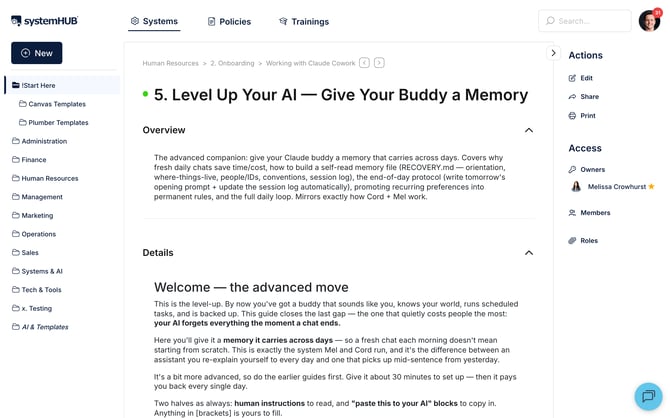
3. Click **Generate URL**.
4. Copy the URL to your clipboard and send it away.
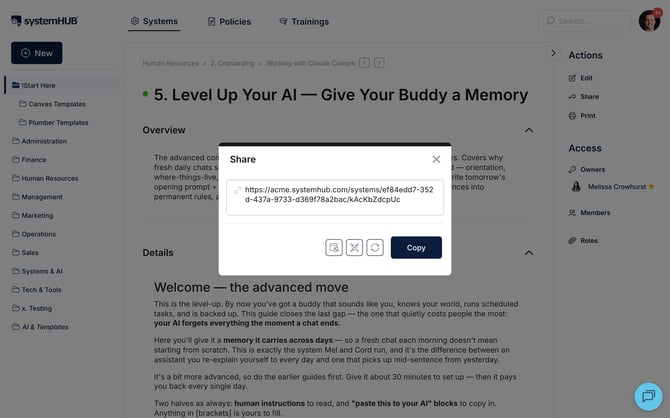
The recipient opens the link in any web browser to view the document in a clean, read-only mode. They can read the text, watch embedded videos, and review public comments, but they cannot make edits, add new comments, or complete sign-offs.
---
### **🔒 Keeping Public Links Secure**
Public links are exactly that—**public**. Anyone who gets their hands on the link can view your content without a password or login. You should treat these generated URLs as if they are public knowledge.
### **For sensitive or confidential content:**
- **Avoid share links entirely:** Invite the individual to your workspace as an official **Reader** instead.
- **Rotate the link:** Manually re-generate the URL to break the old link as soon as the recipient is finished using it.
### **How to Revoke Access Instantly (Re-generating the URL)**
If a contractor's engagement ends or a link is accidentally shared too widely, you can cut off access instantly:
1. Open the shared document and click **Share**.
2. Click **Re-generate URL**.
The old web link will stop working immediately, displaying an error screen if anyone tries to open it. A brand-new URL is created on the spot for you to use going forward if needed.
---
### **🔄 Transferring Content to Another systemHUB Account**
Share URLs double as systemHUB-to-systemHUB content transfers. If your recipient runs their own separate systemHUB workspace (such as a client, partner, or fellow consultant), they can easily clone your work:
1. The recipient opens your shared URL.
2. They click the **Import** button at the top of the screen.
3. They choose a destination folder inside their own account.
The system is instantly copied into their workspace, where they are free to edit, re-brand, and customise it without affecting your original master document.
---
### **🛠️ When to Use vs. When to Skip**
### **Common Use Cases:**
- **Contractor Onboarding:** Fast-tracking a freelancer's onboarding by sending a specific workflow link.
- **Compliance Audits:** Sending an external auditor a single policy document to prove compliance.
- **External Reviews:** Reviewing a drafted process with an outside advisor or consultant.
- **Public Policies:** Distributing public-facing policies (like Terms of Service or Privacy Policies) directly on your company website.
### **When NOT to Use Share Links:**
- **Ongoing Collaboration:** If you need them to actively contribute, invite them to the platform as a **Reader** or **Contributor** instead.
- **Confidential Operations:** Do not use public links for highly sensitive business intelligence—there is no credential protection beyond the URL string itself.
- **Tracked Policies:** If you need verifiable compliance reporting, skip the share link. Official team **sign-offs** cannot be tracked or recorded via public links.
---
### **🎉 You're All Set!**
You now know how to quickly generate, manage, and revoke public share links in systemHUB. This tool gives you the flexibility to securely project your company's operational knowledge beyond your internal team whenever the need arises.
- [Getting Started](https://kb.systemology.com/help-center/getting-started?hsLang=en)
- [Profile & Settings](https://kb.systemology.com/help-center/profile-settings?hsLang=en#main-content)
- [Profile Setup & Onboarding](https://kb.systemology.com/help-center/profile-settings?hsLang=en#profile-setup-onboarding)
- [Account Security & Access](https://kb.systemology.com/help-center/profile-settings?hsLang=en#account-security-access)
- [Notifications & Preferences](https://kb.systemology.com/help-center/profile-settings?hsLang=en#notifications-preferences)
- [Admin & Billing](https://kb.systemology.com/help-center/admin-billing?hsLang=en#main-content)
- [Team & User Management](https://kb.systemology.com/help-center/admin-billing?hsLang=en#team-user-management)
- [Subdomain & Organization Settings](https://kb.systemology.com/help-center/admin-billing?hsLang=en#subdomain-organization-settings)
- [Billing & Subscriptions](https://kb.systemology.com/help-center/admin-billing?hsLang=en#billing-subscriptions)
- [Permissions & Roles](https://kb.systemology.com/help-center/permissions-roles?hsLang=en)
- [Building Content](https://kb.systemology.com/help-center/building-content?hsLang=en)
- [Working With Content](https://kb.systemology.com/help-center/working-with-content?hsLang=en#main-content)
- [Tagging & Organization](https://kb.systemology.com/help-center/working-with-content?hsLang=en#tagging-organization)
- [Content & Collaboration Tools](https://kb.systemology.com/help-center/working-with-content?hsLang=en#content-collaboration-tools)
- [Limits & Specifications](https://kb.systemology.com/help-center/working-with-content?hsLang=en#limits-specifications)
- [Training](https://kb.systemology.com/help-center/training?hsLang=en)
- [Reports & Compliance](https://kb.systemology.com/help-center/reports-compliance?hsLang=en)
- [Integrations & API](https://kb.systemology.com/help-center/integrations-api?hsLang=en)
- [Troubleshooting](https://kb.systemology.com/help-center/troubleshooting?hsLang=en#main-content)
- [Technical Requirements & Compatibility](https://kb.systemology.com/help-center/troubleshooting?hsLang=en#technical-requirements-compatibility)
- [Cache, Performance & Errors](https://kb.systemology.com/help-center/troubleshooting?hsLang=en#cache-performance-errors)
- [Status, Requests & Affiliate Program](https://kb.systemology.com/help-center/status-requests-affiliate-program?hsLang=en#main-content)
- [Affiliate Program](https://kb.systemology.com/help-center/status-requests-affiliate-program?hsLang=en#affiliate-program)
- [Legal & Security](https://kb.systemology.com/help-center/legal-security?hsLang=en#main-content)
- [Policies & Terms](https://kb.systemology.com/help-center/legal-security?hsLang=en#policies-terms)
[](https://www.SYSTEMology.com/)
Copyright © 2026, SYSTEMology / systemHUB