![1000X162.png]](https://kb.systemology.com/hs-fs/hubfs/1000X162.png?width=250&height=43&name=1000X162.png)
🔄 Managing System Ownership During Team Offboarding
When someone leaves your company and you remove their account from systemHUB, you'll be prompted to reassign ownership of their systems before finalising the account removal.
You also have the option to bulk-assign the systems they previously owned to another team member, ensuring no critical procedures are left without an owner.
👥 Step-by-Step Removal Guide
- Navigate to your Settings menu and select the Users or Team tab.
- Locate the team member you wish to remove and click Delete or Remove Account.
- A prompt will appear alerting you to the systems currently owned by this user.
- Choose to either manually assign individual systems or select the option to Bulk-Assign all systems.
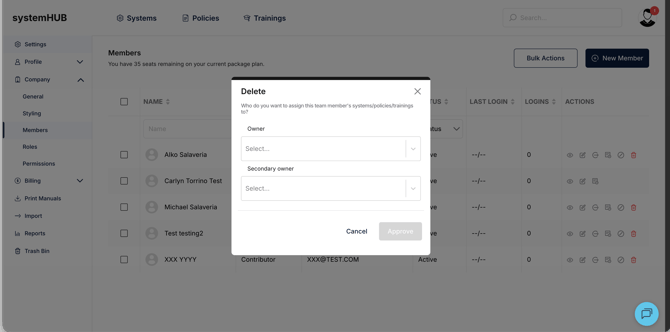
- Search for and select the new system owner from your team dropdown list.
- Click Confirm Reassignment & Remove User to finalise the account removal.
🎉 You're All Set!
The old account has been safely removed, and all business systems have been securely transferred to their new owner. This keeps your company's documentation accurate, organised, and moving forward smoothly!