![1000X162.png]](https://kb.systemology.com/hs-fs/hubfs/1000X162.png?width=250&height=43&name=1000X162.png)
⚙️ How to Change Your Subdomain
Follow these quick steps to update your systemHUB URL to match your business name:
- Navigate to Settings -> Account -> Subdomain.
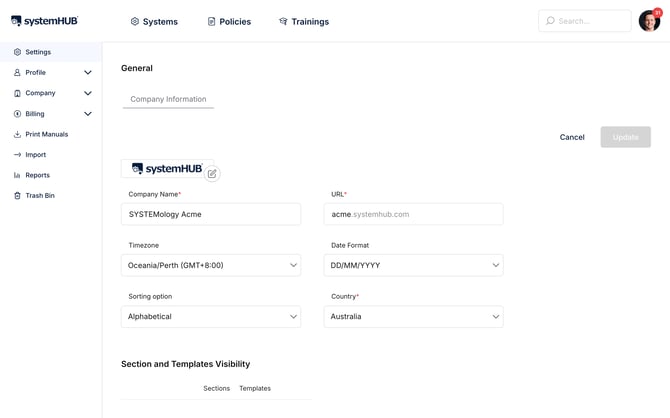
- Enter your new subdomain using letters, numbers, and hyphens only.
- Click Save.
Your account immediately becomes available at the new URL. Be sure to bookmark it straight away!
📌 Things to Know
Before making the switch, please keep these important details in mind:
- Subdomains are unique: If your chosen name is already taken, you will see an error, so try a close variation.
- Instant URL updates: Once you change your subdomain, the old URL stops working immediately. Make sure your team knows the new one before you make the change.
- Future changes: Subdomains can be changed again later if needed, but we recommend picking something stable to avoid confusing your team.
🎉 You're All Set!
Your new systemHUB URL is ready to go. Don't forget to share the updated link with your team so everyone can access your documentation without interruption!