![1000X162.png]](https://kb.systemology.com/hs-fs/hubfs/1000X162.png?width=250&height=43&name=1000X162.png)
🔐 Step 1: Update Your Password (While Logged In)
To maintain security, it is a good idea to update your password periodically.
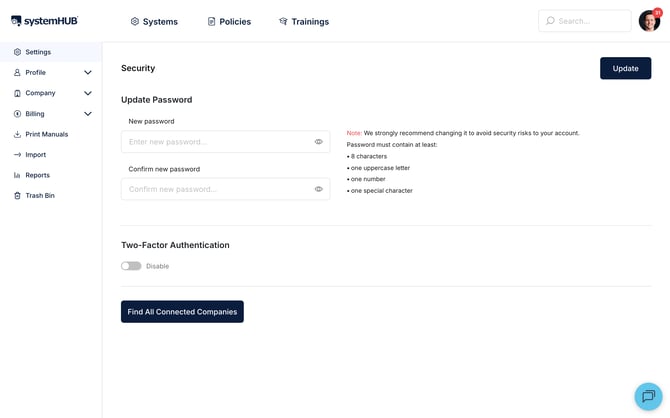
- Click your Profile Picture in the top right corner.
- Select Settings.
- Navigate to the Security tab on the left.
- Set New Password: Enter your new password and confirm it in the second field.
- Security Requirements: For maximum protection, use at least 8 characters, including one uppercase letter, one number, and one special character.
- Click Update on the right side to save.
🔄 Step 2: Reset a Forgotten Password
If you are locked out of your account, you can trigger a reset from the login screen.
- Click the Forgot Password link on the sign-in page.
- Enter your registered Email Address and click Reset.
- Check Your Email: systemHUB will send you a temporary password.
- Log In: Use your email and the provided temporary password to access your account.
- Final Step: Immediately follow the steps in Section 1 above to replace the temporary password with a new, permanent one that you can remember.
🛡️ Step 3: Enable Extra Security
While you are in the Security settings, you should also consider extra protection:
- Two-Factor Authentication (2FA): Toggle this option to On.
- This adds an extra layer of security, requiring a code from your phone in addition to your password to log in.
🎉 You're All Set!
Your login credentials are up to date and secure. Remember to update your passwords regularly to ensure your company documentation stays protected!