![1000X162.png]](https://kb.systemology.com/hs-fs/hubfs/1000X162.png?width=250&height=43&name=1000X162.png)
🔍 View Individual System Ownership
If you only need to check the ownership of a specific document, you can do so directly within the system view:
- Open the System, Policy, or Training document.
- Look at the Properties section on the right-hand side of your screen.
- Identify the access roles:
- Owner (Star Icon): This is the Primary Owner, usually the person who recorded or "owns" the accuracy of the process.
- Secondary Owner: The backup person who can also manage the system.
- Assigned Members/Roles: Lists everyone who has permission to view or interact with this content.
👥 Audit All Systems for a Specific Team Member
To see a complete list of everything a team member owns or is assigned to without opening every system, use the Login As feature:
- Click your Profile Image at the top right and select Company.
- Select Members from the left-hand panel.
- Find the team member and click the three dots (...) next to their name.
- Select Login as Team Member.
🗂️ Navigate the Member’s Profile
Once you are logged in as that team member, you can view their personal dashboard:
- Click their Profile Image in the top right corner and select Profile.
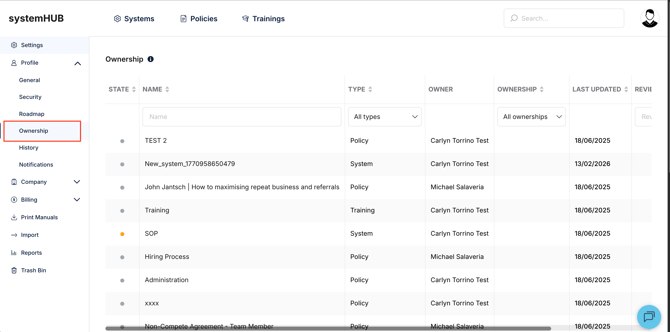
- Use the left-hand panel and click Ownership.
🔐 Permissions and Access Levels
- Who can do this? By default, the Account Owner and Admins have the ability to use the Login As feature to audit workloads.
- Expanding Access: If you want your Editors or Managers to have this same auditing ability, you can request this permission change by contacting the systemHUB support team.
🎉 You're All Set!
You can now easily track and audit system ownership across your entire team. Managing system accountability and reviewing workloads ensures your processes always stay accurate and up to date.