![1000X162.png]](https://kb.systemology.com/hs-fs/hubfs/1000X162.png?width=250&height=43&name=1000X162.png)
🛠️ Fix 1: Verify the Assignment
If a team member tells you they cannot see a document assigned to them, work through this check first. Open the specific system you think they are assigned to, and look at the right-hand panel to check:
- Are they explicitly listed under Assigned Members?
- Or are they part of a Role or Member Group that is listed under Assigned Roles?
If they are not present in either section, they are not actually assigned to the document. Add them to the appropriate section and click Notify.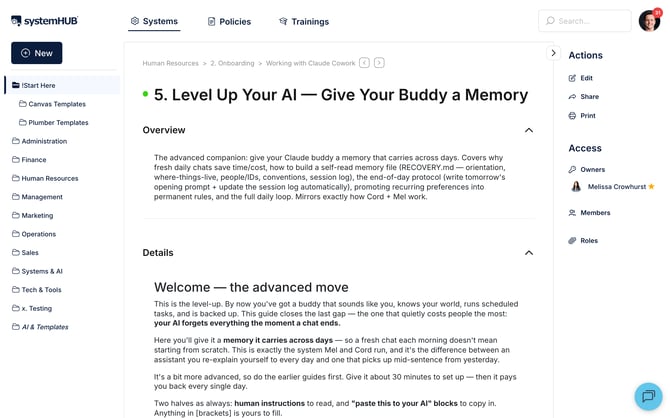
🔐 Fix 2: Check Their Role
Navigate to Settings -> Team and click on the team member's profile to review their access level:
- Reader Role: They can only see content explicitly assigned to them. They will not see content via folder browsing unless the parent folder itself has been assigned to them.
- Contributor Role: They can only see documentation they explicitly own or have been assigned to.
- Member Group Check: If you have assigned them content via a departmental group, click on their Member Groups tab to confirm they are actually an active member of that group.
🔄 Fix 3: Have Them Refresh
Sometimes a newly saved assignment has not propagated to their active login session. Ask the team member to complete the following steps:
- Log out of systemHUB.
- Log back in to the platform.
- Perform a hard refresh by pressing Cmd + Shift + R on a Mac, or Ctrl + F5 on a Windows keyboard.
If the assignment appears correct in your administrator view but remains hidden from theirs, clearing the browser cache using a hard refresh usually resolves the block instantly.
🔍 For Deeper Troubleshooting
If none of these three quick fixes resolves the visibility issue, please see our comprehensive diagnostic guide: Why Can't This User See X? — Troubleshooting Access Issues.
🎉 You're All Set!
You now know how to quickly diagnose and fix user assignment blockers. Keeping these quick checks in mind ensures your team always has immediate access to their required systems and training materials.