![1000X162.png]](https://kb.systemology.com/hs-fs/hubfs/1000X162.png?width=250&height=43&name=1000X162.png)
🛠️ How to Use Code Blocks
The Code Blocks feature is now available in the systemHUB text formatting menu. This feature allows users to insert and display code snippets in a clean, structured format that preserves spacing, indentation, and readability.
Code blocks are especially useful when documenting technical instructions, embedding scripts, or sharing formatted code without losing structure.
🧭 Navigating Around a Code Block
When working with code blocks, users may notice that navigating around them behaves differently compared to regular text.
Key behaviours to expect:
- A code block functions as a separate content block within the editor.
- You cannot type directly “inside” a code block and immediately continue normal text formatting without moving the cursor outside of it.
- To type before or after a code block, you must click outside the block or use keyboard navigation.
How to safely navigate:
- To type above a code block, place your cursor at the start of the code block.
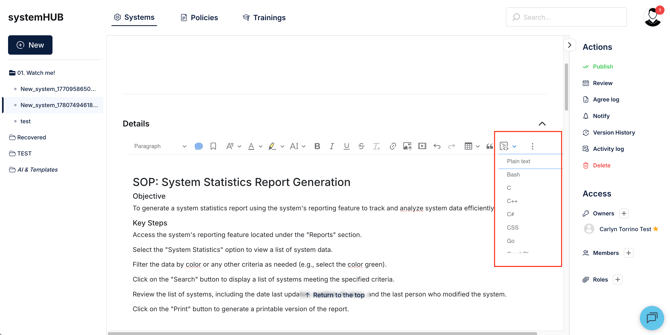
- Press Enter (or Return) to create a new paragraph above it.
- To type below a code block, place your cursor at the end of the code block.
- Press Enter (or Return) twice if needed to create space below.
- Alternatively, use your keyboard arrow keys to move out of the code block boundary, once outside, normal text formatting tools become available again.
💡 Tips and Tweaks
Editing text around code blocks
To insert text directly above or below a code block:
- Click outside the code block first (not inside the code area).
- Then press Enter to create a new paragraph.
- Avoid typing while still focused inside the code block to prevent unintended formatting changes.
Changing line indentation
Inside a code block, indentation is preserved to support structured code formatting.
- Press Tab to indent a line.
- Press Shift + Tab to outdent a line.
- Indentation is maintained consistently across the entire block.
These behaviours follow standard CKEditor 5 code block functionality.
Preserving line indentation
The editor automatically preserves spaces, tabs, and line breaks. This ensures that:
- Code formatting remains intact when pasted.
- No automatic reformatting occurs when pressing Enter.
- Structured code, such as loops, functions, and JSON, stays readable.
If you paste code from another source, the formatting will be retained as closely as possible.
🚫 Disabled Features Inside Code Blocks
When your cursor is inside a code block, the following formatting options are automatically disabled:
- Bold
- Italic
- Underline
- Text alignment (left, centre, right)
- Lists (bulleted or numbered)
- Headings and paragraph styles
- Link insertion
This is intentional, as code blocks are designed to preserve plain text formatting for technical accuracy.
Additional Notes
- Code blocks are treated as standalone elements within the editor.
- Each block is independent and does not merge with surrounding text formatting.
- For best results, always ensure your cursor is placed outside the code block when continuing normal writing.
🎉 You're All Set!
You can now confidently use code blocks to present clean, readable technical snippets inside your documents. If you need further assistance with the text editor, reach out to our support team!