![1000X162.png]](https://kb.systemology.com/hs-fs/hubfs/1000X162.png?width=250&height=43&name=1000X162.png)
🛠️ Step 1: Confirm What They Actually See
Have your team member take a screenshot of what they can see, rather than what they cannot see.
Saying "I cannot find the system" can mean dozens of things. A screenshot immediately tells you whether they are missing the entire folder, seeing the system but unable to open it, or finding it in search but getting an error.
🔐 Step 2: Check Their Role
Navigate to Settings -> Team and click on the team member's profile.
Review these common role-related blockers:
- Reader Role: Can only see content explicitly assigned to them. If a Reader expects to find a system they have not been assigned, this is the issue.
- Contributor Role: Can only edit content they own or are explicitly assigned to. If they are trying to edit something they are not assigned to, this is the issue.
If their Role is incorrect for the task they are trying to perform, update it here.
🗂️ Step 3: Check the System's Assignment
Open the specific system in question. In the right-hand panel, review the following access properties:
- Owner: Who owns the document.
- Secondary Owner: The backup owner.
- Assigned Members: Specific people who can access it.
- Assigned Roles / Member Groups: Entire groups who have permission to access it.
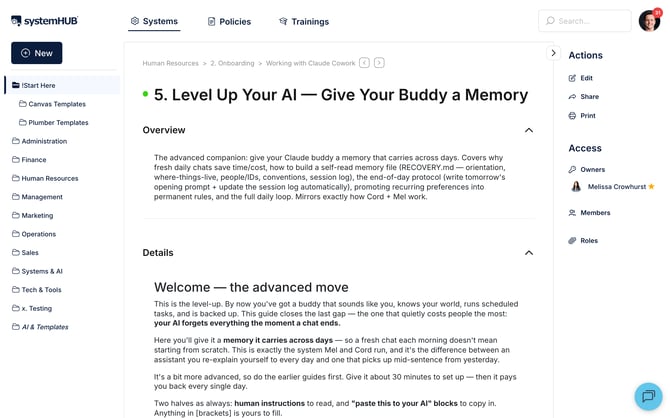
If your team member is not named here AND is not part of any assigned groups, they will not be able to see this system. Add them to grant access.
👥 Step 4: Check Member Group Membership
If a system is assigned to a specific Member Group (e.g., Sales Team) and your team member should have access, confirm they are actually a part of that group:
- Navigate to Settings -> Team.
- Click on the team member's profile.
- Select the Member Groups tab to check their active groups.
ℹ️ Common Cause: The team member was added to systemHUB before the Member Group was created, and they were never manually added to the new group.
📁 Step 5: Check Folder Visibility
If a team member can see a system through the search bar but not when browsing folders, the folder itself might be assigned to a different group.
- Click on the parent folder.
- Check the assignments at the folder level.
Folders inherit assignment behaviour. If a system is placed inside a folder the user does not have permission to see, it will not appear in their folder browse view.
🎛️ Step 6: Check for Custom Permissions
If you have configured custom permission sets, the member's assigned set might explicitly block the action they are trying to take.
- Navigate to Settings -> Permissions.
- Check which custom set applies to their profile and review the toggled capabilities.
❓ When None of This Works
If you have completed all six steps and the team member still cannot see the content, follow these advanced admin troubleshooting steps:
- Use the Login As feature to experience their exact view (available to Account Owners and Admins via Settings -> Team -> click member -> Login as).
- If you see the exact same layout they see, the document assignment is genuinely incorrect.
- If you see the correct content while logged in as them, ask the team member to log out, clear their browser cache, and log back in.
If the issue persists after clearing the cache, contact systemHUB support with your screenshots and a list of the troubleshooting steps you have already tried.
🎉 You're All Set!
You now have a reliable checklist to diagnose and fix user access issues. Working through these steps methodically will keep your team moving forward without losing access to vital company documentation.